




Echo
Administrators
-
Joined
-
Last visited
Everything posted by Echo
-
TelePastries Mod (1.20.4, 1.19.4) adds pastries allowing you to travel through dimensions. (Pastries that teleport players.) Features: If you’ve played Skyblock modpacks in the past you might’ve used similar methods of dimensional transport. This mod currently adds cakes to travel to the Overworld, end and the nether. This mod also has compatibility for the Twilight forest, The lost cities, and The Hunting Dimension. Screenshots: Crafting Recipes: Recommend that you should install Just Enough Items (for mods using Forge) or Roughly Enough Items (for mods using Fabric) to view the full recipes included in this mod Requires: Minecraft Forge How to install: How To Download & Install Mods with Minecraft Forge How To Download & Install Fabric Mods Don’t miss out today’s latest Minecraft Mods TelePastries Mod (1.20.4, 1.19.4) Download Links For Minecraft 1.12.2 Forge version: Download from Server 1 For Minecraft 1.16.5 Forge version: Download from Server 1 For Minecraft 1.17.1 Forge version: Download from Server 1 For Minecraft 1.18.2 Forge version: Download from Server 1 For Minecraft 1.19.2 Forge version: Download from Server 1 For Minecraft 1.19.3 Forge version: Download from Server 1 – Download from Server 2 For Minecraft 1.19.4 Forge version: Download from Server 1 – Download from Server 2 For Minecraft 1.20.1 Forge version: Download from Server 1 – Download from Server 2 For Minecraft 1.20.2 NeoForge version: Download from Server 1 – Download from Server 2 For Minecraft 1.20.4 NeoForge version: Download from Server 1 – Download from Server 2 The post TelePastries Mod (1.20.4, 1.19.4) – Travel Through Dimensions by Pastries appeared first on 9Minecraft | The Best Resource for Minecraft. View the full article
-
More Beautiful Trapdoors Mod (1.20.4, 1.19.4) adds hundreds of new trapdoors into the game. All of these trapdoors are made using the vanilla blocks. To start, you have to craft a Trapdoor Frame using the crafting recipe given below. Once you have this item, you can combine it with almost all of the vanilla blocks to obtain their trapdoor variant. For example, combine a frame with a diamond block and you will get a diamond trapdoor. This works with almost all blocks in the game, including some ridiculous items such as fire and portal blocks. And trapdoors crafted using parent blocks that emit light, will emit light as well. Crafting Recipes: Screenshots: Requires: Minecraft Forge Fabric Loader Fabric API Blackwolf Library Just Enough Items How to install: How To Download & Install Mods with Minecraft Forge How To Download & Install Fabric Mods How To Download & Install The Quilt Loader Don’t miss out today’s latest Minecraft Mods More Beautiful Trapdoors Mod (1.20.4, 1.19.4) Download Links For Minecraft 1.18.2 Forge version: Download from Server 1 – Download from Server 2 Fabric version: Download from Server 1 – Download from Server 2 For Minecraft 1.19.4 Forge version: Download from Server 1 – Download from Server 2 Fabric version: Download from Server 1 – Download from Server 2 For Minecraft 1.20.2 Forge version: Download from Server 1 – Download from Server 2 Fabric version: Download from Server 1 – Download from Server 2 For Minecraft 1.20.4 Forge version: Download from Server 1 – Download from Server 2 Fabric version: Download from Server 1 – Download from Server 2 The post More Beautiful Trapdoors Mod (1.20.4, 1.19.4) – Hundreds of New Trapdoors appeared first on 9Minecraft | The Best Resource for Minecraft. View the full article
-
Chest Tracker Mod (1.20.4, 1.19.4) improves one of the oldest system in the game. Searching for items has always been more of a chore than actually playing your favourite game of Minecraft, hence the creation of Chest Tracker. This Mod assists the players in categorize their storages and search for certain items. It’s quite a simple, yet charming idea, which is alluring for new players, whose yet to have a good managing skill when it comes to items. Furthermore, you will never forget the location of your items, thus optimize your gameplay and make it more efficient, especially for the try-hard and speedrunners. Features: Locate your stored items in your inventory menu. Name-tagging your chests for categorization. Screenshots: Requires: Fabric Modloader Fabric API How to install: How To Download & Install Mods with Minecraft Forge How To Download & Install Fabric Mods How To Download & Install Mods with Quilt Loader Don’t miss out today’s latest Minecraft Mods Chest Tracker Mod (1.20.4, 1.19.4) Download Links Other Versions: Show Spoiler For Minecraft 1.16.1 Fabric version: Download from Server 1 For Minecraft 1.16.3 Fabric version: Download from Server 1 For Minecraft 1.17 Fabric version: Download from Server 1 For Minecraft 1.16.5 Fabric version: Download from Server 1 For Minecraft 1.17.1 Fabric version: Download from Server 1 For Minecraft 1.18.1 Fabric version: Download from Server 1 For Minecraft 1.18.2 Fabric version: Download from Server 1 For Minecraft 1.19 Fabric version: Download from Server 1 For Minecraft 1.19.1 Fabric/Quilt version: Download from Server 1 For Minecraft 1.19.2 Fabric/Quilt version: Download from Server 2 For Minecraft 1.19.3 Fabric version: Download from Server 1 – Download from Server 2 For Minecraft 1.19.4 Fabric version: Download from Server 1 – Download from Server 2 For Minecraft 1.20.1 Fabric version: Download from Server 1 – Download from Server 2 For Minecraft 1.20.2 Fabric/Quilt version: Download from Server 1 – Download from Server 2 For Minecraft 1.20.4 Fabric/Quilt version: Download from Server 1 – Download from Server 2 The post Chest Tracker Mod (1.20.4, 1.19.4) – Track Your Items appeared first on 9Minecraft | The Best Resource for Minecraft. View the full article
-
More Beautiful Stairs Mod (1.20.4, 1.19.4) introduces stair variants for almost all blocks in Minecraft. And this includes non-solid blocks like fire, water, lava, etc. To craft these stairs you have to craft a stair frame by placing 8 sticks and any one vanilla stair block in a 3×3 crafting grid, with the stair block in the center. This will give you a stair frame item. Place one stair frame and any other block in a crafting grid to get the stair variant of that block. Features: Texture Sourcing: More Beautiful Stairs stands out by seamlessly pulling textures from the source blocks of Minecraft’s vanilla game, ensuring a consistent and authentic visual experience. Resource Pack Flexibility: Users have the freedom to customize the mod’s textures with resource packs, allowing for personalization and creative expression while maintaining compatibility. Broad Compatibility: This Minecraft mod goes beyond the basics by being compatible with all resource packs and integrating seamlessly with Just Enough Items (JEI), enhancing the user’s overall gaming experience. Crafting Recipes: Screenshots: Requires: Minecraft Forge Fabric Modloader Fabric API Blackwolf Library Just Enough Items How to install: How To Download & Install Mods with Minecraft Forge How To Download & Install Fabric Mods How To Download & Install The Quilt Loader Don’t miss out today’s latest Minecraft Mods More Beautiful Stairs Mod (1.20.4, 1.19.4) Download Links For Minecraft 1.16.5 Forge version: Download from Server 1 – Download from Server 2 For Minecraft 1.17.1 Forge version: Download from Server 1 – Download from Server 2 For Minecraft 1.18.2 Forge version: Download from Server 1 – Download from Server 2 For Minecraft 1.19.2 Forge version: Download from Server 1 – Download from Server 2 Fabric version: Download from Server 1 – Download from Server 2 For Minecraft 1.19.4 Forge version: Download from Server 1 – Download from Server 2 Fabric version: Download from Server 1 – Download from Server 2 For Minecraft 1.20.2 Forge version: Download from Server 1 – Download from Server 2 Fabric version: Download from Server 1 – Download from Server 2 For Minecraft 1.20.4 Forge version: Download from Server 1 – Download from Server 2 Fabric version: Download from Server 1 – Download from Server 2 The post More Beautiful Stairs Mod (1.20.4, 1.19.4) – 100+ New Stairs! appeared first on 9Minecraft | The Best Resource for Minecraft. View the full article
-
Just Enough Items Mod (1.20.4, 1.19.4) is a stripped-down item and recipe viewing mod for Minecraft 1.8+. Built from the ground up for stability and performance. This mod is an Item and Recipe viewing mod for Minecraft with a focus on stability, performance, and ease of use. Apparently, it is quite similar to Not Enough Items – a famous one. You may recognize this mod as being not enough items. And these mods are very similar in their design and function. How to use: Basic Controls: Inventory: (Minecraft Options -> Controls) Show Recipes: Hover over item + R Show Uses: Hover over item + U Toggle Item List Overlay: Control + O Item List: Show Recipes Click Item or type R Show Uses : Right-Click Item or type U Next/Previous page: Scroll Wheel Search: Select Search Bar: Click or Control + F Clear Search: Right Click Previous Search: Up Arrow Search by Mod Name: Type @ in front of a word (like “@thaum”) Multiple terms work together (like “wand @thaum”) Recipe View: Next/Previous page: Scroll Wheel Show all Recipes: Click the recipe category’s name Move items into crafting area: Click the [+] button. Shift-Click to move multiple sets of items. Advanced Controls: Advanced Search: Search by Tooltip Only: Type # in front of a word Search by OreDict name: Type $ in front of a word Search by Creative Tab: Type % in front of a word Multiple Searches: Separate terms with | characters, like “wrench|hammer” With Cheat Mode Active: Get a full stack of Items: Click Item Get one Item: Right-Click Item Delete Item: Drop an Item into the Item List With Item List Edit Mode Active: (These controls are shown in-game on the item tooltip) Hide Item: Control-Click Item Hide Items and Sub-Items: Control-Right-Click Item Hide all Items from a mod: Control-Shift-Click Item Screenshots: JEI Small Screen JEI Screen Large Requires: Minecraft Forge or Fabric API How to install: How To Download & Install Mods with Minecraft Forge How To Download & Install Fabric Mods Don’t miss out today’s latest Minecraft Mods Just Enough Items Mod (1.20.4, 1.19.4) Download Links Other Versions: Show Spoiler For Minecraft 1.8.0 Forge version: Download from Server 1 For Minecraft 1.8.9 Forge version: Download from Server 1 For Minecraft 1.9.0 Forge version: Download from Server 1 For Minecraft 1.9.4 Forge version: Download from Server 1 For Minecraft 1.10.2 Forge version: Download from Server 1 For Minecraft 1.11.0 Forge version: Download from Server 1 For Minecraft 1.11.2 Forge version: Download from Server 1 For Minecraft 1.12.1, 1.12 Forge version: Download from Server 1 For Minecraft 1.13.2 Forge version: Download from Server 1 For Minecraft 1.14.3 Forge version: Download from Server 1 For Minecraft 1.14.4 Forge version: Download from Server 1 For Minecraft 1.15.1 Forge version: Download from Server 1 For Minecraft 1.16.1 Forge version: Download from Server 1 For Minecraft 1.16.2 Forge version: Download from Server 1 For Minecraft 1.16.3 Forge version: Download from Server 1 For Minecraft 1.16.4 Forge version: Download from Server 1 For Minecraft 1.18 Forge version: Download from Server 1 For Minecraft 1.7.10 Not Enough Items Unofficial: Download from Server 1 – Download from Server 2 For Minecraft 1.12.2 Forge version: Download from Server 1 – Download from Server 2 For Minecraft 1.15.2 Forge version: Download from Server 1 – Download from Server 2 For Minecraft 1.16.5 Forge version: Download from Server 1 – Download from Server 2 For Minecraft 1.17.1 Forge version: Download from Server 1 – Download from Server 2 For Minecraft 1.18.1 Forge version: Download from Server 1 For Minecraft 1.18.2 Forge version: Download from Server 1 – Download from Server 2 Fabric version: Download from Server 1 – Download from Server 2 For Minecraft 1.19 Forge version: Download from Server 1 – Download from Server 2 Fabric version: Download from Server 1 – Download from Server 2 For Minecraft 1.19.1 Forge version: Download from Server 1 – Download from Server 2 Fabric version: Download from Server 1 – Download from Server 2 For Minecraft 1.19.2 Forge version: Download from Server 1 – Download from Server 2 Fabric version: Download from Server 1 – Download from Server 2 For Minecraft 1.19.3 Forge version: Download from Server 1 – Download from Server 2 Fabric version: Download from Server 1 – Download from Server 2 For Minecraft 1.19.4 Forge version: Download from Server 1 – Download from Server 2 Fabric version: Download from Server 1 – Download from Server 2 For Minecraft 1.20.1, 1.20 Forge version: Download from Server 1 – Download from Server 2 Fabric version: Download from Server 1 – Download from Server 2 For Minecraft 1.20.2 Forge version: Download from Server 1 – Download from Server 2 Fabric version: Download from Server 1 – Download from Server 2 For Minecraft 1.20.4 Forge version: Download from Server 1 – Download from Server 2 NeoForge version: Download from Server 1 – Download from Server 2 Fabric version: Download from Server 1 – Download from Server 2 The post Just Enough Items Mod (1.20.4, 1.19.4) – JEI, Crafting Recipes Viewing appeared first on 9Minecraft | The Best Resource for Minecraft. View the full article
-
Receive unique customization items and much more! Read more Discuss on Forum View the full article
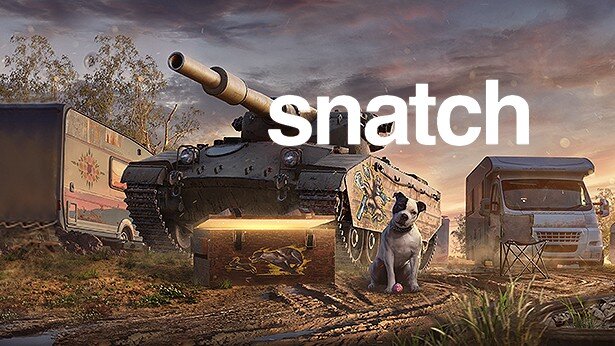 Nessie has finally emerged from her depths in Apex Legends, and let’s just say they’re not here to party. With the latest crossover event, players were hyped up to wield the iconic Buster Sword from Final Fantasy. However, as the event progressed, Legends were quick to realize that the threat wasn’t from sword masters swinging in full force. Nope, the real terror on the Kings Canyon landscape is the apex predator we knew all along, Nessie. It seems that the top dog in the Outlands wasn’t the pro players or the extreme grinders, as nobody is safe from Nessie’s hunting prowess. Moreover, the Apex Legends community has reported multiple sightings of these silent and cuddly killers. The last thing you will hear is their adorable little squeak as they chase you down and take you out! Read More: Apex Legends Just Introduced a Common Heirloom that Can be Used by any Character Wait, How Do You Spawn the Killer Nessie in Apex? In the FF7xApex Legends crossover event, the LTM has something special. Alongside the Buster Sword R2R5, there are Materia hop-ups scattered around the map. Among these, the Red Materia hop-ups give you the ability to summon these viciously cute killers. These adorable mid-sized plushies will be equipped with weapons and will automatically hunt your foes down with impeccable accuracy and speed, as demonstrated by u/zchadow_ on Reddit and YouTube. Nevertheless, everyone is enjoying the chaos and the event in general. The Nessie onslaught might be overwhelming, but there is humor in the chaos. Every once in a while, a bit of silliness just eases the mood before we go back to our regular schedule of skilled-based matchmaking! Read More: Shroud’s Apex Legends Settings in 2024 The post Nessies are Slowly Taking Over the FF7 x Apex Legends Crossover and Players Don’t Know What to Do appeared first on GameRiv. View the full articleIn this article, we’ll drive you through Xynew’s new and updated Apex Legends settings that you need to know. So you can tweak your settings accordingly and get even better at the game. Born in 2005, Brody “Xynew” Geissler is a North American player currently playing for DarkZero Esports. He is also one of the youngest players who is currently playing as a pro in the Apex Legends community. However, don’t be deceived by Xynew’s young entry into the competitive scene, as he is one of the best controller players Apex has to offer right now. Although it hasn’t been that long since he entered into the competitive Apex, his presence is already noticed by the best players in the world. Read More: Nickmercs’s Updated Apex Legends Settings Xynew’s Updated Apex Legends Settings To perform consistently, Xynew uses specific Apex Legends settings. These settings definitely do not make him one of the best players in the world, but they surely help him stay consistent. Each video and controller setting in the game is adjusted to complement his playstyle. credit: EA/xynew Also, keep in mind that players like Xynew often change their Apex Legends settings. However, the changes are always minimal and remain in a specific range. So, it is always suggested to follow pro players’ Apex Legends settings but not mimic them strictly, as they might not fit your play style. So, without further ado, let’s find out what Apex Legends settings Xynew uses so you can tweak yours and take your Apex Legends mastery to the next level. You should go through each setting and find out what suits you best and use it just as it is or modify it to your liking. Video Settings Credit: xynew Visuals are critical as they decide what you can or cannot see in the heat of the battle. Xynew uses a mixture of high-resolution and medium graphics quality settings to get maximum FPS without losing clarity. SettingsValueGeneralDisplay ModeFullscreenAspect Ratio16:10 (native)Resolution1920 x 1080Field of View (FOV)110FOV Ability ScalingDisabledSprint View ShakeMinimalADVANCEDV-SyncDisabledNVidia ReflexEnabled + BoostAdaptive Resolution FPS Target0Adaptive SupersamplingDisabledAnti-aliasingNoneTexture Streaming BudgetMedium (3GB VRAM)Texture FilteringBilinearAmbient Occlusion QualityHighSun Shadow CoverageHighSun Shadow DetailHighSpot Shadow DetailDisabledVolumetric LightingEnabledDynamic Spot ShadowsEnabledModel DetailLowEffects DetailLowImpact MarksLowRagdollsLow Controller Settings Credit: Xynew Xynew uses a customized controller preset that lets him play at his best. Moreover, he uses custom ADS sensitivity that is rare to find among controller users. Xynew’s controller settings are as follows: Button Layouts (Controller Presets) KeybindsButtonCustomizedJumpR Crouch (Hold)LTInteract/ Pickup/ ReloadXCycle Weapon/ Holster (Hold)LAim Down Sight (Hold)LBAttackRBTactical AbilityRTPing/ Ping Wheel (Hold)ASprint/ Toggle ZoomYMeleeBUse Health/ Shield KitD-pad upExtra Character ActionD-pad downToggle Fire ModeD-pad leftEquip GrenadeD-pad rightMap ToggleunknownUltimate AbilityRT + A General Settings Settings and KeybindsValue and ButtonsStick LayoutDefaultInteract/Reload ButtonTap to Use and ReloadCrouch ButtonholdAim ButtonHoldSurvival Slot ButtonOnTrigger DeadzoneNoneMenu Cursor Speed55%Movement/ AimingLook SensitivityHigh (4)Look Sensitivity (ADS)Default (3)Response CurveLinearLook DeadzoneSmallMovement DeadzoneSmallInverted LookOffVibrationOff Custom ADS Controls SettingsValuePer Optic ADS SensitivityOn1x Optic/ Iron SightsDefault (3)2x OpticHigh (4)3x OpticHigh (4)4x OpticHigh (4)6x OpticHigh (4)8x OpticHigh (4)10x OpticHigh (4) So, there you go! These are the new Apex Legends settings Xynew is currently using in 2024. As mentioned earlier, you should always tweak your settings according to your preferences and accessibility. So, try out Xynew’s updated Apex settings and adjust them to your own playstyle to get maximum results. Read More: ChaoticMuch’s Updated Apex Legends Settings The post Xynew’s Apex Legends Settings in 2024 appeared first on GameRiv. View the full articleIn this article, we’ll drive you through ChaoticMuch’s new and updated Apex Legends settings that you need to know. So you can tweak your settings accordingly and get even better at the game. Nathan “ChaoticMuch” Gajkiewicz is a British player and a full-time streamer in Apex Legends. Previously, he used to play for GLYTCH Gaming as a professional Apex player. Later, he joined G2. However, the team disbanded under unavoidable circumstances. This 18-year-old English streamer has recently gained quite a lot of followers on Twitch. Although he used to be a console player, he switched to PC in Season 10 and hit #2 Predator in Season 12 Olympus ranked split. ChaoticMuch hit #1 Predator on the PC Platform in Season 14 Split 1 and kept the grind up against the best players. He is arguably one of the best aimers in Apex Legends because of how good he is with the controller. Read More: Nickmercs’s Updated Apex Legends Settings ChaoticMuch’s Updated Apex Legends Settings ChaoticMuch has an insane aim with the controller. To stay consistent, Chaotic uses specific Apex Legends settings. These settings definitely do not make him one of the best players in the world, but they surely help him stay consistent. Each video and controller setting in the game is adjusted to complement his playstyle. Credit: EA Also, keep in mind that players like ChaoticMuch often change their Apex Legends settings. However, the changes are always minimal and remain in a specific range. So, it is always suggested to follow pro players’ Apex Legends settings but not mimic them strictly, as they might not fit your play style. So, without further ado, let’s find out what Apex Legends settings ChaoticMuch uses so you can tweak yours and take your Apex Legends mastery to the next level. You should go through each setting and find out what suits you best and use it just as it is or modify it to your liking. Video Settings Credit: ChaoticMuch Visuals are critical as they decide what you can or cannot see in the heat of the battle. ChaoticMuch uses a mixture of high resolution and low graphics quality settings to get maximum FPS without losing clarity. SettingsValueGeneralDisplay ModeFullscreenAspect Ratio16:9 (native)Resolution1920 x 1080Field of View (FOV)110FOV Ability ScalingEnabledSprint View ShakeMinimalADVANCEDV-SyncDisabledNVidia ReflexEnabled + BoostAdaptive Resolution FPS Target0Adaptive SupersamplingDisabledAnti-aliasingTSAATexture Streaming BudgetVery High (6GB VRAM)Texture FilteringBilinearAmbient Occlusion QualityLowSun Shadow CoverageLowSun Shadow DetailLowSpot Shadow DetailDisabledDynamic Spot ShadowsDisabledModel DetailLowEffects DetailLowImpact MarksDisabledRagdollsLow Controller Settings Credit: ChaoticMuch ChaoticMuch uses a pretty standard controller setting compared to other pros. However, he adjusted some settings based on his personal preference. ChaoticMuch’s controller settings are as follows: KeybindsButtonStick LayoutDefaultInteract/Reload ButtonTap to Use and ReloadCrouch ButtonToggleAim ButtonHoldSurvival Slot ButtonOnTrigger DeadzoneDefaultMenu Cursor Speed55%Movement/ AimingLook SensitivityHigh (4)Look Sensitivity (ADS)High (4)Response CurveClassicLook DeadzoneNoneMovement DeadzoneSmallInverted LookOffVibrationOff Gears Like other pro players and content creators, ChaoticMuch also uses specific gears that let him play at his best. Apex Legends is a very competitive game. So, having these gears will definitely give you an edge over others. Here is a list of all the gears that ChaoticMuch uses: GearsModelMonitorDell S2421HGFHeadphoneSteelSeries Arctis 5ControllerBattle Beaver DualSenseController 2PlayStation 4 Dual Shock controller So, there you go! These are the new Apex Legends settings ChaoticMuch is currently using in 2024. As mentioned earlier, you should always tweak your settings according to your preference and accessibility. So, try out Chaotic’s updated Apex settings and adjust them with your own playstyle to get maximum results. Read More: ShivFPS’s Updated Apex Legends Settings The post ChaoticMuch’s Apex Legends Settings in 2024 appeared first on GameRiv. View the full articleIn this article, we’ll drive you through HisWattson’s new and updated Apex Legends settings that you need to know. So you can tweak your settings accordingly and get even better at the game. Born in 2001, Jacob “HisWattson” McMillin is a North American professional Apex Legends player currently signed for FURIA. Unlike most players, who had previous experience in other big FPS titles, HisWattson began his professional eSports career with Apex Legends. He started playing Apex Legends from Season 4 and hit Predator in the next split. He made his first competitive Apex debut in May 2022, ALGS Online #6 – North America. Though he had a very rough starting point, his popularity started to skyrocket in 2022. He hit #1 Predator in Season 13 Split 2 and gained huge followings down the line. People were skeptical about his potential in the actual competitive scene, outside of his comfort zone. However, he proved everyone wrong with his incredible Seer gameplay in the highest level of the competitive scene, ALGS. With HisWattson, FURIA got 2nd place in the ALGS 2022 finals. Despite having the highest points on the ALGS finals scoreboard, they failed to get the matchpoint after coming very close to it. In any case, FURIA and HisWattson dominated the ALGS finals with surprising performances, and HisWattson even received the MVP title of the tournament. Read More: Aceu’s Updated Apex Legends Settings HisWattson’s Updated Apex Legends Settings To make incredible plays, HisWattson uses specific Apex Legends settings. These settings definitely do not make him one of the best players in the world, but they surely help him stay consistent. Each game’s video setting, key bind, and mouse setting are adjusted to complement his playstyle. Credit: EA Also, keep in mind that pro players like HisWattson often change their Apex Legends settings. However, the changes are always minimal and remain in a specific range. So, it is always suggested to follow pro players’ Apex Legends settings but not mimic them strictly, as they might not fit your play style. So, without further ado, let’s find out what Apex Legends settings HisWattson uses so you can tweak yours and take your Apex Legends’ mastery to the next level. You should go through each setting and find out what suits you best and use it just as it is or modify it to your liking. Video Settings Credit: HisWattson Visuals are critical as they decide what you can or cannot see in the heat of the battle. HisWattson uses a mixture of high resolution and low graphics quality settings so he can get maximum FPS without losing clarity. SettingsValueGeneralDisplay ModeFullscreenAspect Ratio16:9 (native)Resolution1920 x 1080Field of View (FOV)104FOV Ability ScalingDisabledSprint View ShakeMinimalADVANCEDV-SyncDisabledNVidia ReflexEnabledAdaptive Resolution FPS Target0Adaptive SupersamplingDisabledAnti-aliasingNoneTexture Streaming BudgetVery Low (2-3 GB VRAM)Texture FilteringBilinearAmbient Occlusion QualityLowSun Shadow CoverageLowSun Shadow DetailLowSpot Shadow DetailDisabledDynamic Spot ShadowsDisabledModel DetailLowEffects DetailLowImpact MarksDisabledRagdollsLow Keybinds Credit: EA Now that you know HisWattson’s video settings, it’s time to see what keybinds he uses for fluid movement and commands. We’ll include all his keybinds below: Movement KeybindsButtonMove ForwardW / Mouse Wheel UpJumpSpace / Mouse Wheel DownCrouch (Hold)LCTRLAuto SprintOn Weapons & Abilities KeybindsButtonTactical AbilityMouse 5Ultimate AbilityZInteract/ PickupEAlternate InteractXInventoryTab / IMapMToggle Fire ModeBMeleeVEquip Weapon 11Equip Weapon 22Holster Weapon3Equip GrenadeGEquip Survival ItemL-AltUse Syringe5Use Med Kit6Use Shield Cell7Use Shield Battery8Use Phoenix Kit9Inspect Weapon Mouse 4 Mouse Sensitivity Credit: HisWattson HisWattson uses a relatively low mouse sensitivity compared to other pros. He also uses custom ADS control for each optic sight. This makes sense because it helps him aim better. He often likes to change his mouse sensitivity and DPI. However, he does not change his mouse sensitivity drastically, so it usually stays in a small range. Here is the list of current Apex Legends mouse sensitivity settings HisWattson has. SettingsValueDPI800Sensitivity1.54eDPI1232Per Optic ADS Sensitivity On1x Optic/ Iron Sights0.92x Optic1.13x Optic1.24x Optic1.36x Optic1.08x Optic1.010x Optic1.0Hz1000AccelerationOff Gears Like other pro players, HisWattson also uses specific gear that lets him play at his best. Apex Legends is a very competitive game. So, having these gears will definitely give you an edge over others. Here is a list of all the gears that he uses: GearsModelMonitorRazer Viper UltimateKeyboardRazer BlackWidow V3 ProMousepadX-raypad Aqua Control+ProcessorIntel Core i9-12900KGraphics CardNVIDIA GeForce RTX 3080 Read More: Shroud’s Updated Apex Legends Settings So, there you go! These are the new Apex Legends settings HisWattson is currently using in 2024. As mentioned earlier, you should always tweak your settings according to your preference and accessibility. So, try out HisWattson’s updated Apex settings and adjust them with your own playstyle to get maximum results. The post HisWattson’s Apex Legends Settings in 2024 appeared first on GameRiv. View the full articleIn this article, we’ll drive you through Shroud’s new and updated Apex Legends settings that you need to know. So you can tweak your settings accordingly and get even better at the game. Michael “shroud” Grzesiek, born in 1994, is an ex-professional CS: GO player. At 20 years of age, he received a chance to play as a stand-in on the Cloud9 CS:GO roster. Cloud9 was impressed by his approach to the game and eventually gave him a permanent spot on the original 5-man roster. He was a small-time streamer who liked playing all sorts of games. After joining Cloud9, his streaming viewership started to grow rapidly. His insane gameplay and highlights made him the “King of Reddit”. He became a popular figure in both the streaming and esports communities. In April 2018, Shroud stepped down from competing as a professional CS: GO player and pursued his dream as a streamer. When Apex Legends was released, Shroud was one of the first few players to pick up the game. Like any other games he touched, Apex Legends was also a playground for him. His Apex Legends gameplay even impressed the best of the bests in the community. Though Shroud does not play Apex Legends on a regular basis, he is still a legend in the game. Read More: Aceu’s Updated Apex Legends Settings Shroud’s Updated Apex Legends Settings To complement his playstyle, Shroud uses specific Apex Legends settings. These settings definitely do not make him the best player, but they surely help him stay consistent. Each video setting, key bind, and mouse setting in the game are adjusted to complement his gameplay. Credit: Shroud Also, keep in mind that players like Shroud often change their Apex Legends settings. However, the changes are always minimal and remain in a specific range. So, it is always suggested to follow pro players’ or content creators’ Apex Legends settings but not mimic them strictly, as they might not fit your play style. So, without further ado, let’s find out what Apex Legends settings Shroud uses so you can tweak yours and take your Apex Legends mastery to the next level. You should go through each setting and find out what suits you best and use it just as it is or modify it to your liking. Video Settings Credit: Shroud Visuals are critical as they decide what you can or cannot see in the heat of the battle. Shroud uses a mixture of high-resolution and medium graphics quality settings so he can get good FPS with maximum clarity. SettingsValueGeneralDisplay ModeFullscreenAspect Ratio16:9 (native)Resolution2560 x 1440Field of View (FOV)103FOV Ability ScalingDisabledADVANCEDV-SyncDisabledNVidia ReflexEnabled + BoostAdaptive Resolution FPS Target0Adaptive SupersamplingDisabledAnti-aliasingTSAATexture Streaming BudgetVery High (8GB VRAM)Texture Filtering16xAmbient Occlusion QualityHighSun Shadow CoverageLowSun Shadow DetailLowSpot Shadow DetailHighDynamic Spot ShadowsDisabledModel DetailHighEffects DetailHighImpact MarksHighRagdollsHigh Keybinds Credit: Shroud Now that you know Shroud’s video settings, it’s time to see what keybinds he uses for fluid movement and commands. We’ll include all his keybinds below: Movement KeybindsButtonMove ForwardW / Mouse Wheel UpJumpMouse Wheel DownCrouch (Toggle)CCroush (Hold)LCTRLSprintLSHIFT Weapons & Abilities KeybindsButtonTactical AbilityQUltimate AbilityZInteract/ PickupFAlternate InteractXInventoryTabMapMToggle Fire ModeBMeleeMouse 4Equip Weapon 11Equip Weapon 22Holster Weapon3Equip GrenadeGPingMousewheelUse SyringeHUse Med Kit4Use Shield Cell3Use Shield BatteryMouse 5Use Phoenix KitX Mouse Sensitivity Credit: Shroud Shroud runs a medium-high mouse sensitivity compared to other pros and content creators. This makes sense because it helps him aim consistently. He often likes to change his mouse sensitivity and DPI. However, he does not change his mouse sensitivity drastically, so it usually stays in a small range. Here is the list of current Apex Legends mouse sensitivity setting Shroud has. SettingsValueDPI800Sensitivity1.5ADS Sensitivity Multiplier1eDPI1200Hz1000AccelerationOff Gears Credit: Shroud Shroud uses specific gears that let him play at his best. Apex Legends is a very competitive game. So, having these gears definitely gives him an edge over others. Here is a list of all the gears that Shroud uses: GearsModelMonitorASUS ROG Swift PG27AQNMouseLogitech G303 Shroud EditionKeyboardLogitech G Pro X Keyboard Shroud EditionHeadphonesLogitech G PRO X 2 Headset BlackMousepadLogitech G840 Shroud EditionProcessorIntel Core i9-13900KGraphics CardNVIDIA GeForce RTX 4090Gaming ChairLogitech G x Herman Miller EmbodyStreaming MicrophoneBlue MouseMicrophone ArmRode PSA1MixerFocusrite Scarlett 2i2Streaming/ Recording CameraSONY Alpha A6000Streaming DeckElgato Stream Deck So, there you go! These are the new Apex Legends settings Shroud is currently using in 2024. As mentioned earlier, you should always tweak your settings according to your preference and accessibility. So, try out Shroud’s updated Apex settings and adjust them with your own playstyle to get maximum results. Read More: Best Apex Legends Weapon Skins with Clean Iron Sights The post Shroud’s Apex Legends Settings in 2024 appeared first on GameRiv. View the full articleIn this article, we’ll drive you through Albralelie’s new and updated Apex Legends settings that you need to know. So you can tweak your settings accordingly and take your gameplay one step ahead. Born in 2000, Mac “Albralelie” Beckwith is a professional Apex Legends player and content creator. Although he is signed under the TSM banner, he does not play with the original TSM 3-men roster and is a content creator for the organization. Albralelie is a very unpredictable player with an aggressive playstyle. Whatever he does, somehow, he makes the play work. Currently, he is trying his luck out in different teams to compete in the Apex Legends scene. His highlights still inspire many players to become the best in Apex Legends. Read More: Shroud’s Updated Apex Legends Settings Albralelie’s Updated Apex Legends Settings To complement his playstyle, Albralelie uses specific Apex Legends settings. These settings definitely do not make him one of the best players in the world, but they surely help him stay consistent. Each game’s video setting, key bind, gears, and mouse settings are adjusted to complement his playstyle. Credit: EA Also, keep in mind that pro players like Albralelie often change their Apex Legends settings. However, the changes are always minimal and remain in a specific range. So, it is always suggested to follow pro players’ Apex Legends settings but not mimic them strictly, as they might not fit your play style. So, without further ado, let’s find out what Apex Legends settings Albralelie uses so you can tweak yours and take your Apex Legends mastery to the next level. You should go through each setting and find out what suits you best and use it just as it is or modify it to your liking. Video Settings Credit: Albralelie Visuals are critical as they decide what you can or cannot see in the heat of the battle. Albralelie uses a mixture of high resolution and low graphics quality settings so he can get maximum FPS without losing clarity. Albralelie likes to switch between a 16:9 and 16:10 aspect ratio. So, try them out and see which one you prefer more. SettingsValueGeneralDisplay ModeFullscreenAspect Ratio16:9 (native)Resolution1920 x 1080Field of View (FOV)104FOV Ability ScalingDisabledSprint View ShakeMinimalADVANCEDV-SyncDisabledNVidia ReflexEnabledAdaptive Resolution FPS Target0Adaptive SupersamplingDisabledAnti-aliasingNoneTexture Streaming BudgetVery Low (2GB VRAM)Texture FilteringBilinearAmbient Occlusion QualityLowSun Shadow CoverageLowSun Shadow DetailLowSpot Shadow DetailDisabledDynamic Spot ShadowsDisabledModel DetailLowEffects DetailLowImpact MarksDisabledRagdollsLow Keybinds Credit: Albralelie Now that you know Albralelie’s video settings, it’s time to see what keybinds he uses for fluid movement and commands. We’ll include all his keybinds below: Movement KeybindsButtonMove ForwardW / Mouse Wheel UpJumpMouse Wheel DownCrouch (Hold)LCTRLAuto SprintOn Weapons & Abilities KeybindsButtonTactical AbilityQUltimate AbilityY/ ZInteract/ PickupEAlternate InteractXInventoryTabMapMToggle Fire ModeBMeleeVEquip Weapon 11Equip Weapon 22Holster Weapon3Equip GrenadeGEquip Survival ItemL-AltUse Syringe5Use Med Kit6Use Shield Cell7Use Shield Battery8Use Phoenix Kit9 Mouse Sensitivity Credit: Albralelie Albralelie uses a relatively high mouse sensitivity compared to other pros. This makes sense because it helps him with his crazy movements. He often likes to change his mouse sensitivity and DPI. However, he does not change his mouse sensitivity drastically, so it usually stays in a small range. Here is the list of current Apex Legends mouse sensitivity settings Albralelie has. SettingsValueDPI800Sensitivity1.8ADS Sensitivity Multiplier1eDPI1440Hz1000AccelerationOff Gears Like other pro players, Albralelie uses specific gears to let him play at his best. Apex Legends is a very competitive game. So, having these gears will definitely give you an edge over others. Here is a list of all the gears that Albralelie uses: GearsModelMonitorAlienware AW2521HMouseLogitech G Pro X SuperlightHeadphoneLogitech G Pro X HeadsetKeyboardCustom KeyboardMousepadLogitech G640 TSM EditionProcessorIntel Core i9-10900KGraphics CardNVIDIA GeForce RTX 3080 Read More: Aceu’s Updated Apex Legends Settings So, there you go! These are the new Apex Legends settings Albralelie is currently using in 2024. As mentioned earlier, you should always tweak your settings according to your preference and accessibility. So, try out Albralelie’s updated Apex settings and adjust them with your own playstyle to get maximum results. The post Albralelie’s Apex Legends Settings in 2024 appeared first on GameRiv. View the full articleIn this article, we’ll drive you through Stormen’s new and updated Apex Legends settings that you need to know. So you can tweak your settings accordingly and take your gameplay one step ahead. Ludvig “stormen” Storm is a Swedish player and the only one in this list who mains Octane. Whenever you hear the name Stormen, a red and flashy devil-like Octane Legendary skin pops up in your mind who is always on stim, running with a Sentinel and an R99 in his hands. He is more than just an entertainer and a pub stomper. He also shines in Ranked and easily wows even the pros with his movement skills. Currently, Stormen is working as a content creator for HorizonUnion. Read More: Mande’s Updated Apex Legends Settings Stormen’s Updated Apex Legends Settings To complement his playstyle, Stormen uses specific Apex Legends settings. These settings definitely do not make him one of the best players in the world, but they surely help him stay consistent. Each game’s video setting, keybinds, gears, and mouse settings are adjusted to complement his playstyle. Credit: Stormen Also, keep in mind that pro players and content creators like Stormen often change their Apex Legends settings. However, the changes are always minimal and remain in a specific range. So, it is always suggested to follow pro players’ Apex Legends settings but not mimic them strictly, as they might not fit your play style. So, without further ado, let’s find out what Apex Legends settings Stormen uses so you can tweak yours and take your Apex Legends mastery to the next level. You should go through each setting and find out what suits you best and use it just as it is or modify it to your liking. Video Settings CREDIT: EA Visuals are critical as they decide what you can or cannot see in the heat of the battle. Stormen uses a mixture of high-resolution and low-quality graphics settings so he can get maximum FPS without losing clarity. Video SettingsValueDisplay ModeFull ScreenResolution1920×1080Aspect Ratio16:9Brightness50%FOV110FOV Ability ScalingDisabledSprint View ShakeMinimal Advanced Video SettingsValueV-SyncDisabledNVIDIA ReflexEnabled + BoostAnti-AliasingNoneTexture Streaming BudgetVery Low (2GB VRAM)Texture FilteringBilinearAmbient Occlusion QualityDisabledSun Shadow CoverageLowSun Shadow DetailLowSpot Shadow DetailDisabledVolumetric LightingDisabledDynamic Spot ShadowsDisabledModel DetailMediumEffects DetailLowImpact MarksDisabledRagdollsLow Keybinds Now that you know Stormen’s video settings, it’s time to see what keybinds he uses for fluid movement and commands. We’ll include all his keybinds below: Movement KeybindsButtonCrouchCJumpSpace / Mouse Wheel DownSprintL-ShiftAuto-SprintOff Weapons & Abilities KeybindsButtonTactical AbilityQUltimate AbilityTInteract / PickupEAlternate InteractXInventoryTabMapMToggle Fire ModeBMeleeMouse 4Equip Weapon 11Equip Weapon 22Holster Weapons3Equip GrenadeFEquip Survival ItemZUse Syringe5Use Med Kit6Use Shield Cell7Use Shield Battery8Use Phoenix Kit9 Mouse Sensitivity Stormen uses a relatively high mouse sensitivity compared to other pros. This makes sense because it helps him with his crazy movement. He often likes to change his mouse sensitivity and DPI. However, he does not change his mouse sensitivity drastically, so it usually stays in a small range. Here is the list of current Apex Legends mouse sensitivity setting Stormen has. SettingsValueDPI800Sensitivity1.2ADS Sensitivity Multiplier1Per Optic ADS SensitivityOffeDPI960Hz1000AccelerationOff Gears credit: stormen Like other pro players, Stormen uses specific gears to let him play at his best. Apex Legends is a very competitive game. So, having these gears will definitely give you an edge over others. Here is a list of all the gears that Stormen uses: GearsModelMonitorASUS ROG SWIFT PG258QMouseLogitech G Pro X Superlight BlackHeadphoneHyperX Cloud IIKeyboardWooting 60 HEMousepadSteelSeries QcK XXLProcessorAMD Ryzen 9 7950XGraphics CardNVIDIA GeForce RTX 4090 Read More: Aceu’s Updated Apex Legends Settings So, there you go! These are the new Apex Legends settings Stormen is currently using in 2024. As mentioned earlier, you should always tweak your settings according to your preference and accessibility. So, try out Stormen’s updated Apex settings and adjust them with your own playstyle to get maximum results. The post Stormen’s Apex Legends Settings in 2024 appeared first on GameRiv. View the full articleDon't miss the limited-time offer on these formidable tanks! Read more Discuss on Forum View the full article
 In this article, we’ll drive you through YukaF’s new and updated Apex Legends settings that you need to know. So you can tweak your settings accordingly and take your gameplay one step ahead. Yuga “YukaF” Horie is a Japanese player currently playing for Fnatic. Most of the best movement players are great entertainers and content creators. They primarily play pubs because it is easier to move as they please in pubs compared to higher-ranked or tournament matches. However, YukaF doesn’t care about all those. He will style on players, whether in pubs, in Predator Ranked, or in ALGS. He is one of the most feared MnK players in the APAC North region. With YukaF’s exceptional skill, Fnatic won both Split 1 and Split 2’s Pro League regional finals of ALGS Year 2. Read More: Mande’s Updated Apex Legends Settings YukaF’s Updated Apex Legends Settings To complement his flashy playstyle, YukaF uses specific Apex Legends settings. These settings definitely do not make him one of the best players in the world, but they surely help him stay consistent. Each game’s video setting, keybinds, gears, and mouse settings are adjusted to complement his playstyle. Credit: fnatic Also, keep in mind that pro players like YukaF often change their Apex Legends settings. However, the changes are always minimal and remain in a specific range. So, it is always suggested to follow pro players’ Apex Legends settings but not mimic them strictly, as they might not fit your play style. So, without further ado, let’s find out what Apex Legends settings YukaF uses so you can tweak yours and take your Apex Legends mastery to the next level. You should go through each setting and find out what suits you best and use it just as it is or modify it to your liking. Video Settings CREDIT: EA Visuals are critical as they decide what you can or cannot see in the heat of the battle. YukaF uses a mixture of high-resolution and low-quality graphics settings so he can get maximum FPS without losing clarity. Video SettingsValueDisplay ModeFull ScreenResolution1920×1080Aspect Ratio16:9Brightness50%FOV110FOV Ability ScalingDisabledSprint View ShakeMinimal Advanced Video SettingsValueV-SyncDisabledNVIDIA ReflexEnabled + BoostAnti-AliasingNoneTexture Streaming BudgetVery Low (2GB VRAM)Texture FilteringBilinearAmbient Occlusion QualityDisabledSun Shadow CoverageLowSun Shadow DetailLowSpot Shadow DetailLowVolumetric LightingDisabledDynamic Spot ShadowsDisabledModel DetailLowEffects DetailLowImpact MarksDisabledRagdollsLow Keybinds Now that you know YukaF’s video settings, it’s time to see what keybinds he uses for fluid movement and commands. We’ll include all his keybinds below: Movement KeybindsButtonCrouchL-CtrlJumpSpace/ Mouse Wheel UpSprintL-ShiftAuto-SprintUnknown Weapons & Abilities KeybindsButtonTactical AbilityQUltimate AbilityY / ZInteract / PickupEAlternate InteractXInventoryTabMapMToggle Fire ModeBMeleeVEquip Weapon 11Equip Weapon 22Holster Weapons3Equip GrenadeGEquip Survival ItemL-AltUse Syringe5Use Med Kit6Use Shield Cell7Use Shield Battery8Use Phoenix Kit9 Mouse Sensitivity YukaF uses a relatively medium-low sensitivity compared to other pros. This medium-low sensitivity helps him stay consistent and does not hamper his movement abilities. He often likes to change his mouse sensitivity and DPI. However, he does not change his mouse sensitivity drastically, so it usually stays in a small range. Here is the list of current Apex Legends mouse sensitivity settings YukaF has. SettingsValueDPI800Sensitivity1.3ADS Sensitivity Multiplier1Per Optic ADS SensitivityOffeDPI1040Hz1000AccelerationOff Gears Like other pro players, YukaF uses specific gears to let him play at his best. Apex Legends is a very competitive game. So, having these gears will definitely give you an edge over others. Here is a list of all the gears that YukaF uses: GearsModelMonitorZOWIE XL2546KMouseG-Wolves Hati S+ 4KHeadphoneUnknownKeyboardWooting 60 HEMousepadArtisan Hayate Otsu XSoftProcessorIntel Core i9-10900KGraphics CardNVIDIA GeForce RTX 3080 Read More: Xynew’s Updated Apex Legends Settings So, there you go! These are the new Apex Legends settings YukaF is currently using in 2024. As mentioned earlier, you should always tweak your settings according to your preference and accessibility. So, try out FukaF’s updated Apex settings and adjust them with your own playstyle to get maximum results. The post YukaF’s Apex Legends Settings in 2024 appeared first on GameRiv. View the full article

Important Information
Account
Navigation
Search
Configure browser push notifications
Chrome (Android)
- Tap the lock icon next to the address bar.
- Tap Permissions → Notifications.
- Adjust your preference.
Chrome (Desktop)
- Click the padlock icon in the address bar.
- Select Site settings.
- Find Notifications and adjust your preference.
Safari (iOS 16.4+)
- Ensure the site is installed via Add to Home Screen.
- Open Settings App → Notifications.
- Find your app name and adjust your preference.
Safari (macOS)
- Go to Safari → Preferences.
- Click the Websites tab.
- Select Notifications in the sidebar.
- Find this website and adjust your preference.
Edge (Android)
- Tap the lock icon next to the address bar.
- Tap Permissions.
- Find Notifications and adjust your preference.
Edge (Desktop)
- Click the padlock icon in the address bar.
- Click Permissions for this site.
- Find Notifications and adjust your preference.
Firefox (Android)
- Go to Settings → Site permissions.
- Tap Notifications.
- Find this site in the list and adjust your preference.
Firefox (Desktop)
- Open Firefox Settings.
- Search for Notifications.
- Find this site in the list and adjust your preference.