

Echo
Administrators
-
Joined
-
Last visited
Everything posted by Echo
-
You can get some exclusive Apex Legends cosmetic items during the holiday just by relaxing and watching Twitch streams. Here’s how. Apex Legends is currently one of the most popular battle royale games available on the market. The game features tons of cosmetic items to make everything in-game stand out. You can find unique skins for any Legend and weapon. Moreover, you can also use weapon charms to decorate your guns and customize them even further. There are also Banner Frames, Skydive Emotes, Sprays, Charms, and other items. Unfortunately, these cosmetic items are not cheap, and you must purchase the majority of them from the in-game store in order to support the game. There are, however, some ways to obtain these cosmetic items for free! Yes, Apex Legends is teaming up with Twitch to provide free items to players during the holiday season. Read More: Is Apex Legends Slowly Dying? The Community Voices Concerns Apex Legends Holiday Twitch Drops Starting from December 26 to December 30, Apex Legends will give away free cosmetic items to players who tune in to any Apex Legends Twitch streams. You won’t have to tune in to any specific Apex Legends Twitch stream to receive the drop. Yes, that’s right. You can watch any Apex Legends stream on Twitch and get some free, exclusive drops for Apex Legends. credit: EA Mark your calendar for the following Twitch Drop dates: December 26: Watch 1 Hour to get: Noxlotl Loading Screen Watch 2 Hours to get: “Iced Out” Gun Charm Watch 3 Hours to get: “Aura of Vengeance” Revenant Character Skin December 27: Watch 1 Hour to get: Kazama Loading Screen Watch 2 Hours to get: “Winners Are Grinners” Holospray Watch 3 Hours to get: “Cult Classic” Devotion Weapon Skin December 28: Watch 1 Hour to get: Zonotaida Loading Screen Watch 2 Hours to get: “Giggle Guard” Gun Charm Watch 3 Hour to get: “Ocean’s Spear” Bangalore Character Skin December 29: Watch 1 Hour to get: Heiro Loading Screen Watch 2 Hours to get: “I Am Beautiful” Holospray Watch 3 Hours to get: “Tribal Glyph” RE-45 Weapon Skin December 30: Watch 1 Hour to get: Iwamoto Loading Screen Watch 2 Hours to get: “Packaged” Gun Charm Watch 3 Hours to get: “Singularity” Bloodhound Character Skin How to Earn the Drops There are a total of 15 cosmetics available throughout our Apex Legends Holiday Twitch Drop. Three different items will be available each day across 5 days. Loading screens will be available within the 1st consecutive hour of viewing, Gun Charms/Holosprays within the 2nd hour, and finally, Character/Gun Skins within the 3rd hour. Watch any Apex Legends Twitch streamer (streaming in the “Apex Legends” category on Twitch) for three hours to earn all drops. Remember, to get the drops, you need to bind your EA account to Twitch. Otherwise, you won’t receive the drops. How to Bind EA Account to Twitch Follow the steps below to connect your Twitch and EA accounts for the first time. Go to ea.com/twitchlinking and sign in or create an account. Make sure you’re logging into the Twitch account where you want to watch the streams and get rewards. If you have Login Verification turned on, enter your security code and click Log In. If you set up App Authenticator, we’ll send your security code to your phone. If you haven’t set it up, you’ll get your code in your email. Click the Yes, link them button to link your EA and Twitch accounts. You’ll get a notification that you’re successfully linked. Check your Connections in your Twitch Settings. You should see Electronic Arts listed under Other Connections. There you go! Don’t forget to get all the free drops by tuning in to Apex Legends Twitch streams. Have a great holiday. Read More: Apex Legends Community is Outraged with the Winter Express LTM Missing The post How to Get Apex Legends Holiday Twitch Drops appeared first on GameRiv. View the full article
-
Don't miss out on this limited-time opportunity to snag exclusive collectibles for up to 70% off! Read more View the full article

-
View File [PLUGIN] GORE ULTIMATE Descriere: Pluginul Amx Gore pentru CS 1.6 adaugă sânge real jocului după ce a ucis jucători. Acum jocul tău va părea mai intens decât era înainte. Un plugin excelent care nu cauzează probleme la contactarea serverului și, de asemenea, potrivit pentru orice servere publice chiar și astăzi. Autor (nume): mortall Nume (numele pluginului respectiv): Gore_Ultimate Comenzi publice (comenzile ce se execută pe server): amx_(comanda) / Cvars: Nu are Instalare: 1. Fisierul gore_ultimate.amxx il puneti in addons/amxmodx/plugins 2. Intrati in fisierul addons/amxmodx/configs/plugins.ini si adaugati la urma: gore_ultimate.amxx Submitter Echo Submitted 12/26/2023 Category Plugins
-
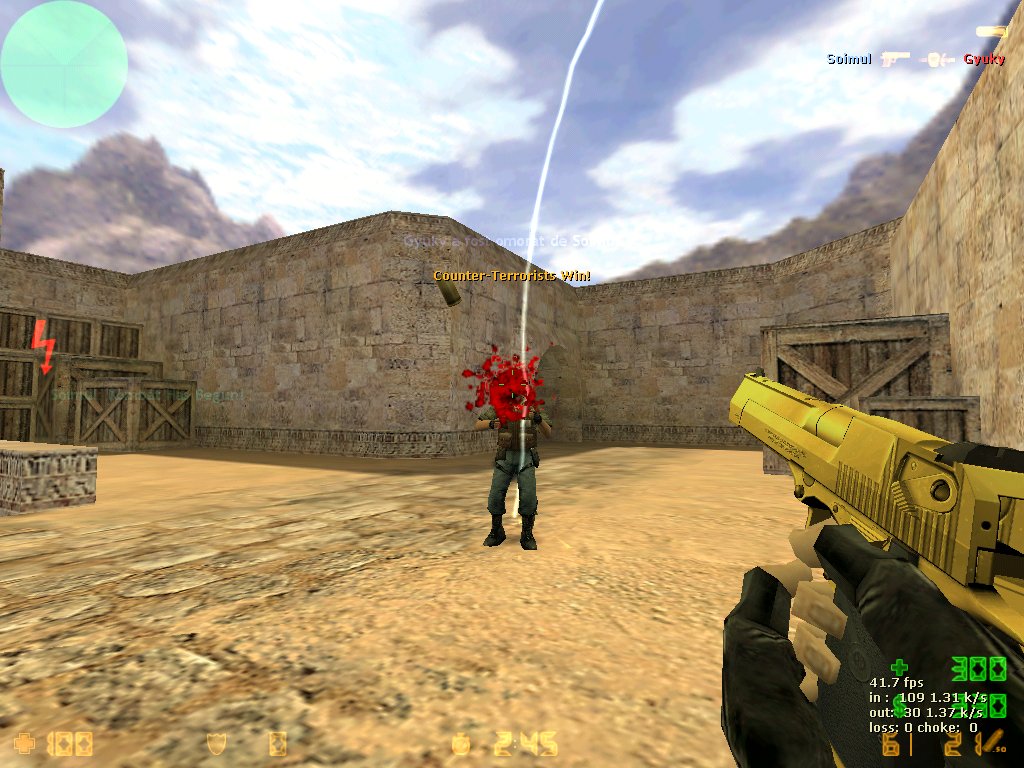 Descriere: Pluginul Amx Gore pentru CS 1.6 adaugă sânge real jocului după ce a ucis jucători. Acum jocul tău va părea mai intens decât era înainte. Un plugin excelent care nu cauzează probleme la contactarea serverului și, de asemenea, potrivit pentru orice servere publice chiar și astăzi. Autor (nume): mortall Nume (numele pluginului respectiv): Gore_Ultimate Comenzi publice (comenzile ce se execută pe server): amx_(comanda) / Cvars: Nu are Instalare: 1. Fisierul gore_ultimate.amxx il puneti in addons/amxmodx/plugins 2. Intrati in fisierul addons/amxmodx/configs/plugins.ini si adaugati la urma: gore_ultimate.amxxFree
 -
https://www.youtube.com/watch?v=0xQg9wtTldQ&ab_channel=MyMood
Important Information
Account
Navigation
Search
Configure browser push notifications
Chrome (Android)
- Tap the lock icon next to the address bar.
- Tap Permissions → Notifications.
- Adjust your preference.
Chrome (Desktop)
- Click the padlock icon in the address bar.
- Select Site settings.
- Find Notifications and adjust your preference.
Safari (iOS 16.4+)
- Ensure the site is installed via Add to Home Screen.
- Open Settings App → Notifications.
- Find your app name and adjust your preference.
Safari (macOS)
- Go to Safari → Preferences.
- Click the Websites tab.
- Select Notifications in the sidebar.
- Find this website and adjust your preference.
Edge (Android)
- Tap the lock icon next to the address bar.
- Tap Permissions.
- Find Notifications and adjust your preference.
Edge (Desktop)
- Click the padlock icon in the address bar.
- Click Permissions for this site.
- Find Notifications and adjust your preference.
Firefox (Android)
- Go to Settings → Site permissions.
- Tap Notifications.
- Find this site in the list and adjust your preference.
Firefox (Desktop)
- Open Firefox Settings.
- Search for Notifications.
- Find this site in the list and adjust your preference.