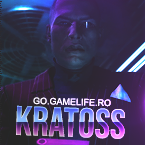
kRatoss
Members
-
Joined
-
Last visited
-
Ala cu teroristii arata frumos, mersi mult ❤️
-
Mersi dar aș vrea ceva "rotund"? Plus ca nu prea se potriveste.. prea multe culoro
-
Tip creatie: (avatar, semnatura, banner etc.): Artwork discord Dimensiuni: (avatar 150x250, sig max. 400x200): 200x200 Text principal (Secundar obligatoriu: GameLife.Ro/ www.gamelife.ro) : GO.GAMELIFE.RO sau doar GO Imagine/tematica: Ceva galben, culori placute Alte precizari: o sa o tin aici https://imgur.com/a/eE1Piky Link ultima cerere depusa: https://gamelife.ro/forum/index.php?/topic/5875-cerere-avatar/
-
kRatoss changed their profile photo
-
Mulțumesc, @Sting! Puteti da t/c.
-
-
Apreciez efortul dar nu imi prea place rezultatul. Fondul arata aiurea cu tematica si blurul nu se potriveste. Mai astept lucrari @chiube: Asteapta cat vrei, dar te rog sa nu dai replay mereu. Multumesc
-
Tip creatie: (avatar, semnatura, banner etc.): Avatar Dimensiuni: (avatar 150x250, sig max. 400x200): 150x250 Text principal (Secundar obligatoriu: GameLife.Ro/ www.gamelife.ro) : kRatoss ( Secundar go.gamelife.ro ) Imagine/tematica: CyberPunk 2077 / Exemplu text Alte precizari: Culori predominante specifice CyberPunk 2077, textul ca in clipul dat pe cat posibil, in rest las la imaginatia voastra. Link ultima cerere depusa: asta e prima