




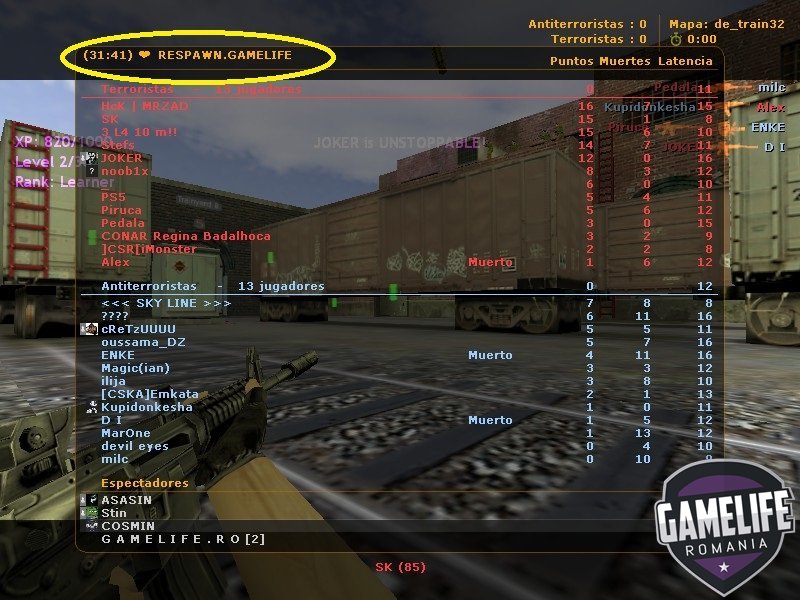
Descriere:
Adds the remaining time in h:m:s format to the host name (updated every second). Updates also in players scoreboard, you just can leave it opened and it will update in live time
Instalare:
- Fisierul HostnameTimeleft.amxx il puneti in addons/amxmodx/plugins
- Fisierul HostnameTimeleft.sma il puneti in addons/amxmodx/scripting
- Intrati in fisierul addons/amxmodx/configs/plugins.ini si adaugati la urma: HostnameTimeleft.amxx
Alti pasi necesari....
Cvar-uri (se adauga in fisierul amxmodx\configs\amxx.cfg
sv_hostname_timeleft 0/1 - enable/disable plugin (need maprestart) (default: 1)
sv_hostname_style 1-5 - style of showing timeleft (default: 3)
Style 1
Code:
hostname (Timeleft: 35:20) hostname (No timelimit)
Style 2
Code:
hostname (35:20) hostname (--:--)
Style 3
Code:
(35:20) hostname (--:--) hostname
Styles 4, 5 means what they will be updated only in scoreboard but not in favourites!
Comenzi administrative (se tasteaza in consola si trebuie sa fiti administrator):
- Nu are
Comenzi publice (se tasteaza in joc prin apasarea tastei Y):
- Nu are
Module necesare (se sterge ; din fata modulului de mai jos, acestea le gasiti in fisierul amxmodx\configs\modules.ini):
- Nu necesita
Create an account or sign in to leave a review
There are no reviews to display.