



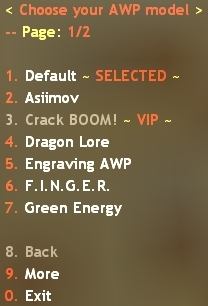
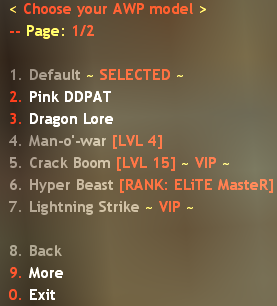
AWP Models
☄ Description
- A simple plugin that adds a menu from which you can choose your AWP skin. The menu can be accessed by typing /awp in the chat.
☄ Cvars
- am_open_at_spawn "0" -- whether the menu will be automatically opened on first spawn
- am_save_choice "0" -- whether the selected skin will be saved via SteamID after leaving the server
☄ Adding skins
- The skins can be added in configs/AWPModels.ini by following the example:
[Skin Name]
V_MODEL = path to v_ model
P_MODEL = path to p_ model
- If the skin doesn't have a p_ model, you can choose not to add the P_MODEL field.
- You can also add a sound when selected, assign a admin flag or a level from the rank system:
[Skin Name]
V_MODEL = path to v_ model
P_MODEL = path to p_ model
FLAG = if you want the skin to be for VIP users/admins, enter the flag here
LEVEL = required level (requires OciXCrom's Rank System)
SHOW_RANK = if set to 1, the rank name will be displayed instead of the level number (requires OciXCrom's Rank System)
XP = required XP (requires OciXCrom's Rank System)
SELECT_SOUND = sound when selecting the skin from the menu
- Example:
[My Cool AWP]
V_MODEL = models/v_coolawp.mdl
P_MODEL = models/p_coolawp.mdl
FLAG = b
LEVEL = 15
SHOW_RANK = 1
XP = 5000
SELECT_SOUND = coolawp/select.wav
Create an account or sign in to leave a review
There are no reviews to display.